
Quick Answer: Custom GPTs are officially being retired. The retirement date is December 11, 2026. After that date, Custom GPTs and Custom GPT pages will stop opening, so copy the Custom GPT instructions and download Custom GPT reference files before that time. The easiest way for a GPT is to use a ChatGPT Project, which keeps the same instructions and files while a plugin is best suited for Custom GPTs that used connected apps or custom actions.
If you created a custom GPT, this update impacts you directly. A custom GPT is a version of ChatGPT that has its instructions, files, and occasionally links to other services. OpenAI is no longer supporting that format. Is taking everyone towards plugins and projects. This guide covers the dates that remain after the change and the specific steps to protect your work before December 11. All the details here are taken from OpenAI’s retirement FAQ, so you can verify the information for yourself.
When are custom GPTs being retired?
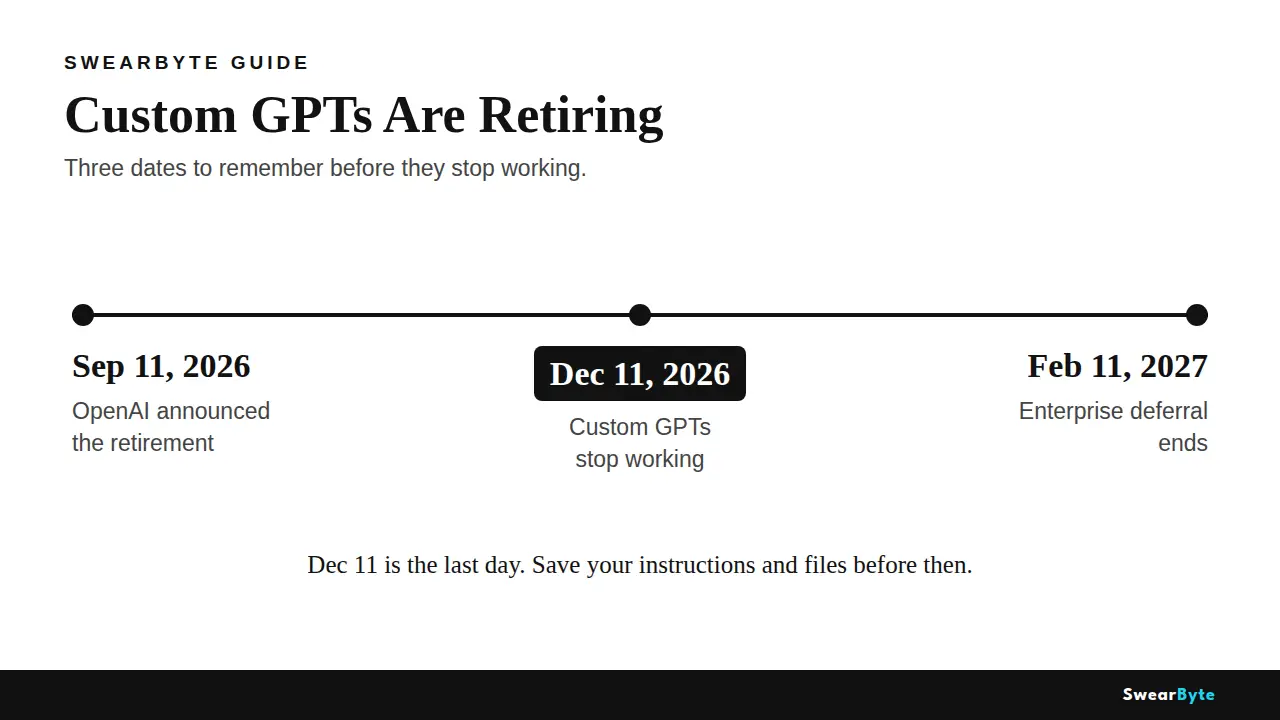
OpenAI has planned the end of service for December 11, 2026. On that day, custom GPTs and their pages will no longer be available. Any link that was shared will not work anymore. This change applies to all ChatGPT plans.
The date and time when you can move things may be different depending on your account or your workspace. So the date shown in your message, inside the product, is the one that matters for you. I just checked the update. New GPT creation ended on October 26, 2026; affected enterprise workspaces and personal accounts cannot create GPTs either. Some Enterprise and FedRAMP workspaces with a qualifying, approved deferral get an extension until February 11, 2027. That extension does not restore new GPT creation, and it does not apply to every workspace.
Why is OpenAI retiring custom GPTs?
I see that OpenAI is moving customization toward plugins. OpenAI moves customization toward plugins, and plugins hold instructions, reference files, and connected apps in one package. A plugin turns GPT instructions into a skill and copies GPT knowledge files into reference files. It adds GPT-connected apps. OpenAI also points GPT owners toward ChatGPT Projects.
What happens to your custom GPT and your chats?
Your old conversations are safe. OpenAI says your existing conversations with custom GPTs will stay accessible after retirement, and you need to take no action to keep them. The GPT itself will not continue to exist. At the retirement date, the GPT and its page become impossible to access. After migration, the original remains usable until retirement. It becomes read-only, and you cannot remove it.
Three things do not move over. Custom actions do not transfer. Any link your GPT had to another service stops working until you fix it. The GPT’s selected model does not move over either. The sharing settings do not transfer, so people who used your GPT do not get the new version automatically. Your conversation starters do not transfer either, so save the prompts you still use.
How to save your custom GPT before December 11
Do this now, while the GPT still opens.
1. Open ChatGPT on the web, click GPTs in the left sidebar, then click My GPTs to see the GPTs you created.
2. Open the GPT, click Edit, then select the Configure tab.
3. Select all the text in the Instructions box, copy it, and paste it into a plain document named after the GPT.
4. Copy your conversation starters, name, and description into the same document. These starters do not move to a plugin on their own.
5. Scroll to the knowledge files section and download every file you uploaded. If a file cannot be downloaded, note its name and where the original lives.
6. If your GPT uses a custom action, save its OpenAPI schema file without any secrets, and note the login type. Put everything in one folder named after the GPT.
Repeat this for every GPT you really need.
Your 3 options after retirement
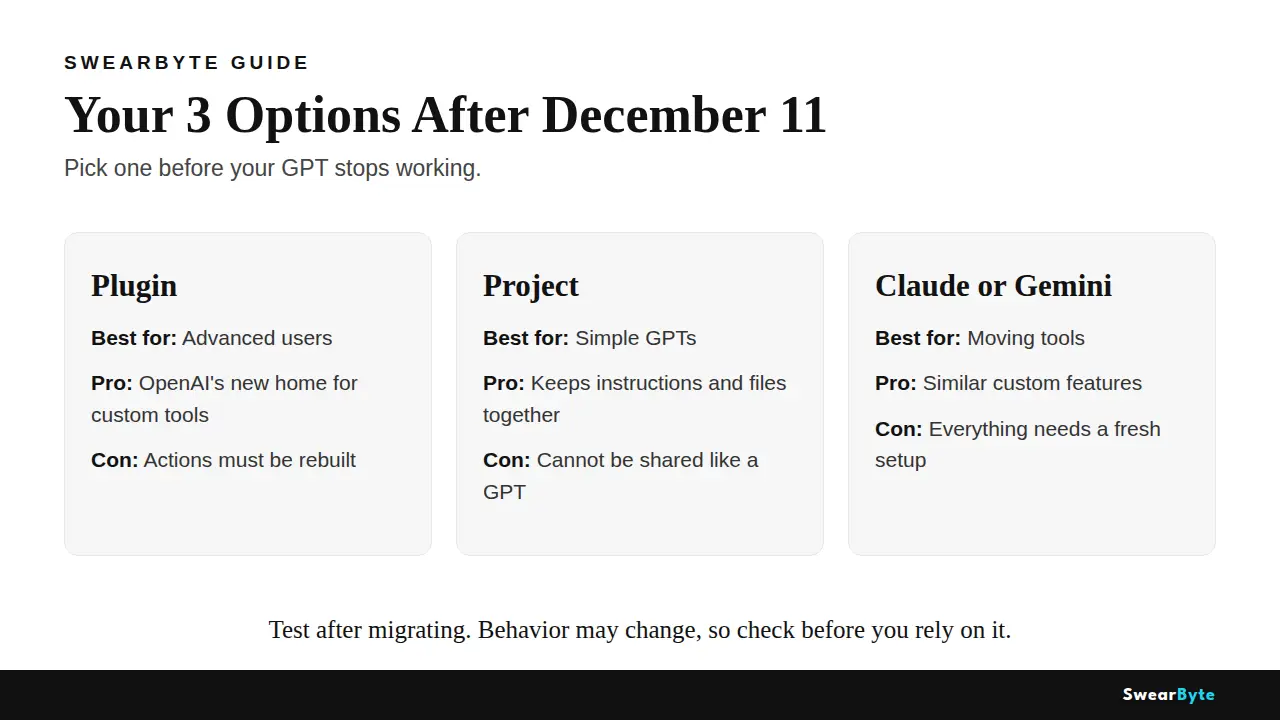
You have three ways forward.
| Option | Best for | Advantage | Disadvantage |
|---|---|---|---|
| 1. ChatGPT Plugin | Advanced users | OpenAI’s new way to package instructions, files, and apps | Custom actions must be rebuilt from scratch. |
| 2. ChatGPT Project | Simple GPT owners | Keeps your instructions and reference files together | Cannot be shared like a GPT, with no public page |
| 3. Claude Projects or Gemini Gems | People moving to another tool | Both offer custom GPT-style features with instructions and files. | Everything needs a fresh setup in the new tool |
For a GPT that mostly contains instructions and a few files, using a project is the solution. If that GPT connects to applications, a plugin is the only way to keep that workflow within ChatGPT. To move away from ChatGPT, Claude Projects and Gemini Gems provide a concept, yet GPT must be rebuilt manually. OpenAI states that migration does not preserve GPTs’ behavior exactly; testing after the migration is important.
How to migrate a custom GPT to a plugin
Migration runs from the My GPTs screen.
7. Open ChatGPT on the web, go to GPTs, then My GPTs.
8. Select Migrate to plugin, then read the migration details before you confirm. Migration uses the GPT’s latest published version, so publish important edits first, because drafts do not transfer.
9. Follow the prompts to create the plugin. OpenAI turns your instructions into a skill, copies your knowledge files into reference files, and adds your connected apps.
10. Review the instructions and files, then test it with tasks you normally gave your GPT. Check that it picks the right skill, uses the expected files, and gives complete answers.
11. Share the plugin with people who used your GPT, because it starts private.
Migration may reach accounts at different times. Check the notice in your account if you do not see the option. Test the plugin before December 11 because the plugin will not behave like your old GPT.
Custom GPT alternatives compared
Here is how the three alternatives compare, based on each company’s help pages. I have not tested these side by side.
A ChatGPT Project is the free replacement inside ChatGPT available on every plan, including free. It keeps chats, files, and instructions together. A free project holds up to 5 files. Go and. Allow 25, and Pro and business plans allow 40. You can share it with a few named people. There is no public page, like the old GPT Store. Old GPT chats cannot move in. Custom actions do not transfer.
Claude Projects works the same way. A project groups chats under shared instructions and uploaded project knowledge, and free accounts can create up to five projects while paid plans remove that cap. Claude suits documents well because its large context window holds a lot of source material at once.
Gemini Gems is Google’s version, a saved expert with a name, instructions, and up to ten knowledge files. They are free to build. A Gem can link a Google Drive file, so it always uses the latest version. But Google is replacing Gems with skills for accounts, so Gems become read-only on November 17, 2026, and disappear on December 17, 2026. Build a skill, not a gem.
Pick a project for GPTs, a plugin, or, for connected ones, Claude for long documents or Gemini skills if you live in Google Drive.
Frequently Asked Questions
Are custom GPTs being discontinued?
Yes. OpenAI announced on September 11, 2026, that custom GPTs will retire on December 11, 2026. After that date, custom GPTs and their pages become inaccessible on all plans. FedRAMP and Enterprise workspaces with an approved deferral will still see custom GPTs until February 11, 2027.
When do custom GPTs stop working?
They stop working on December 11, 2026, for accounts. Your GPT will remain usable until that date. After the migration, your GPT will still be there. Will be read‑only. Check the notice in your account for details.
What will replace custom GPTs?
Plugins are the replacement. Plugins package a GPT’s instructions as a skill, its knowledge files as reference files, and its connected apps together. If your GPT is simple, OpenAI recommends a ChatGPT project instead.
How do I export my custom GPT?
Open GPTs, then My GPTs, in ChatGPT on the web. Open the GPT, click Edit, and go to the Configure tab. Copy the instructions and starters into a document. Download every knowledge file. Save any custom action schema. Do not include secrets.
What happens to my chats with a custom GPT?
Your existing conversations will stay accessible after retirement. OpenAI says you do not need to take any action to keep them. However, those chats will remain with the GPT and will not move into a plugin.
Can I migrate a custom GPT to a plugin?
Yes, if migration is available for your account. Go to My GPTs, choose Migrate to plugin, check the details, create the plugin, and test it. The migration uses the published version. Custom actions, the model, and sharing settings do not carry over.
Is a ChatGPT project the same as a custom GPT?
No, it is the closest simple replacement. A project keeps instructions, files, and chats in one place. It does not have a page, no GPT Store listing, and no custom actions. It works well for use with small teams.
What are the best alternatives to custom GPTs?
Inside ChatGPT, pick a plugin for GPTs and a project for simple ones. Outside ChatGPT, Claude projects are good for documents, and Gemini skills are best for Google Drive users. Avoid a Gemini Gem because Google is replacing Gems with skills.
Why is OpenAI retiring custom GPTs?
OpenAI is shifting customization to plugins. Plugins combine instructions, reference files, and connected apps into one package. The company says this setup works across all chats.
Can I use something like a custom GPT in Claude or Gemini?
Yes. Claude Projects let you save instructions and project knowledge. Gemini offers skills, which replaced Gems for accounts. Both are free to start. You must rebuild your GPT’s instructions and files manually.
Do I need a paid plan to create a plugin?
OpenAI’s retirement FAQ says no plan is needed for migration. Some guides from November 2026 say creating and sharing a plugin needs the Go plan. Free cannot do it. I could not confirm this myself, so check OpenAI’s pricing page and the Migrate option in your account first.
Quick checklist before December 11
- Open My GPTs and list every GPT you created.
- Copy each GPT’s instructions, starters, and description into a document.
- Download every knowledge file and save any custom action schema without secrets.
- Move each simple GPT into a Project, or migrate it to a plugin, and test it.
- Share the replacement with the people who used your GPT.
You May Also Like
Is Krea AI Safe? Honest 2026 Review – The same honest safety format, for Krea.
Is Fish Audio Safe? An Honest Review for 2026 – The same honest safety format, for Fish Audio.
Is Lovable AI Safe? Honest Proven Review (2026) – The same honest safety format, for Lovable.
Last updated: November 14, 2026.