Quick Answer: To make your internet faster, restart your router, move it to a central open spot, switch to the 5GHz WiFi band, disconnect devices you are not using, and pause background downloads. For gaming, video calls, or 4K streaming, connect with an Ethernet cable instead of WiFi.
Slow internet can ruin your day. Pages take too long to load, videos keep buffering, and video calls freeze at the worst moment. If you are looking for how to make the internet faster, you are in the right place.
The good news is that you do not always need a faster plan or expensive new extensions. In many cases, a slow WiFi connection can get better with a few simple changes. Moving your router, changing one setting, or closing apps running in the background can boost your speed in minutes.
This guide walks you through 10 simple ways to make your internet faster, starting with the easiest fixes first. No technical skills needed.
1. Run an Internet Speed Test First
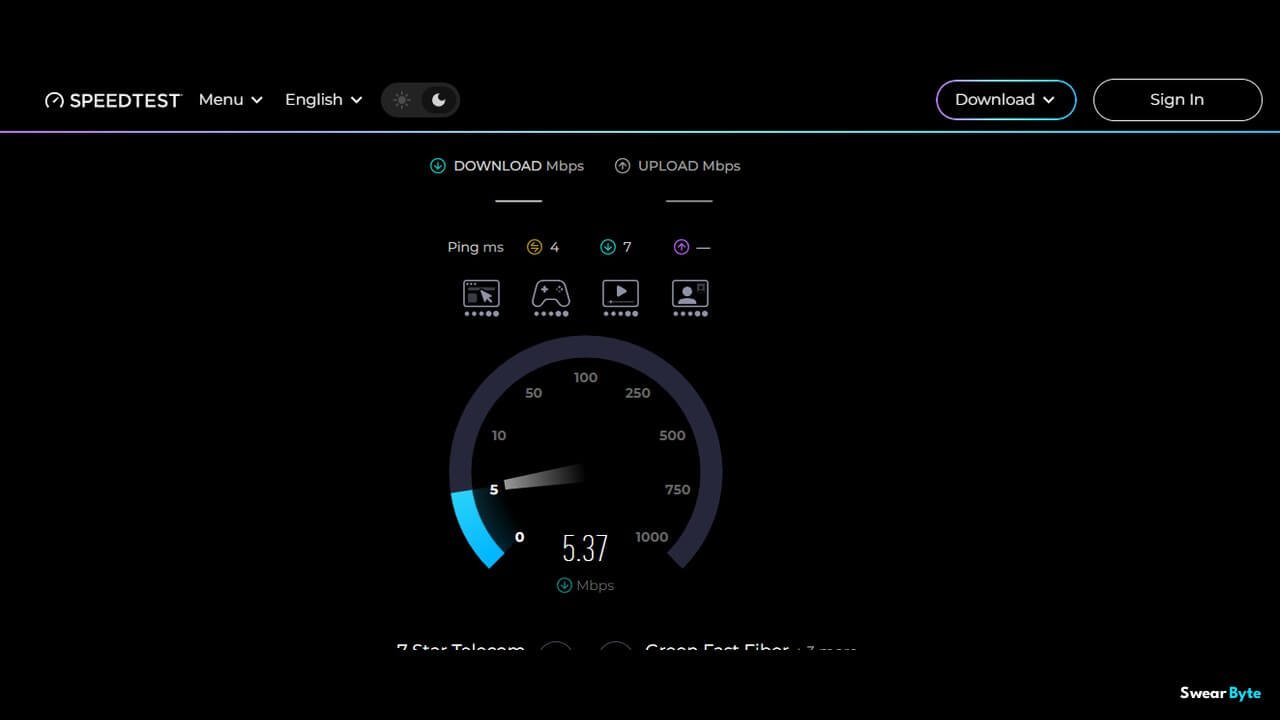
Before you make any changes, find out how fast your internet connection really is. A speed test shows your download speed, upload speed, and ping. Then check those numbers against the speed your internet provider said you would get.
You can use tools like Speedtest by Ookla or Fast.com. Run the test on WiFi first.
For example, if your plan says 100 Mbps but you only get 20 Mbps, something is definitely not right. But if you get to 100 Mbps and web pages still feel slow, the problem might be your WiFi signal or your device, not your plan.
Test with Ethernet too. If you have an Ethernet cable, connect your computer directly to the router. Run the test again. If the wired speed is much faster than WiFi, your internet plan is fine. The issue is with your wireless signal. This one check saves you from trying fixes you do not need.
2. Restart Your Router and Modem
It sounds too simple. Restarting your equipment fixes more slowdowns than anything else. Routers run for weeks without a break. Over time, small software glitches can add up. Your speed drops.
Do it right now: Turn off the router. If you have a modem, turn that off too. Wait 30 seconds. Turn the modem back on first. Wait until its lights stop blinking. Then turn the router on and wait for your devices to reconnect. Run another speed test.
If your speed improves for a while and then drops again, note that down. A pattern like that points to a problem, maybe overheating hardware or a line issue, and it is useful information if you later call your provider.
3. Move Your Router to a Better Location
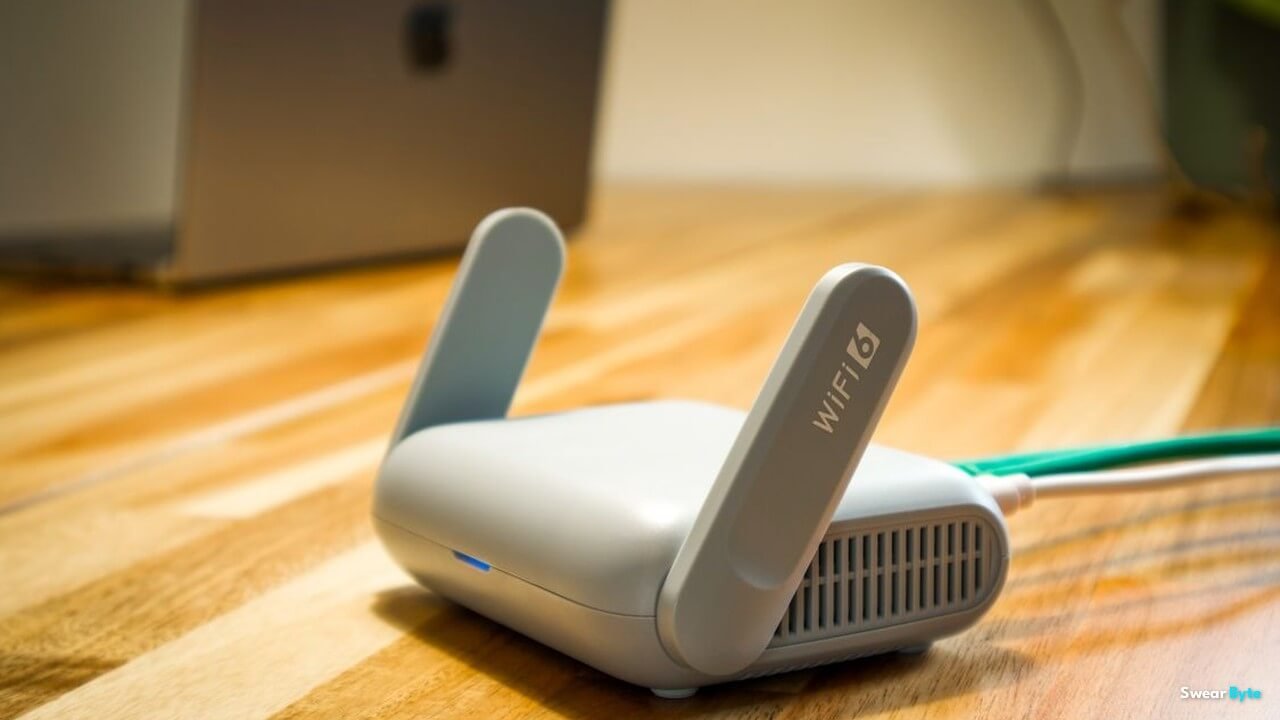
Where your router sits matters more than most people think. WiFi signals lose strength when they pass through walls, furniture, or metal. If you hide the router inside a cabinet behind the TV or put it on the floor in a corner, it will not work properly.
For better coverage, place your router in the middle of your home—not at one end. Keep it out in the open, not stuck inside furniture. Put it up on a shelf instead of leaving it on the floor. Stay away from concrete walls and big metal objects. Also avoid placing it near microwaves or baby monitors, as they can interfere with the signal.
Remember, having a faster internet plan does not fix a WiFi signal. Your internet provider sends the promised speed to your router. The connection from the router to your device depends on how your home is set up.
4. Disconnect Devices You Don’t Need

Every connected device shares your bandwidth. Phones, laptops, smart TVs, tablets, game consoles, security cameras, and even smart appliances all use the network without you noticing.
Normal browsing on a device is fine. The trouble starts when several devices do work at the same time. The biggest bandwidth eaters are streaming 4K video, large game downloads and updates, cloud backups, uploading videos, video calls running at the time, and security camera uploads.
If one device is downloading a game update while another device streams a movie, bandwidth slows down for everyone. Disconnect devices that are not in use or pause tasks during off hours.
5. Stop Background Downloads and Updates
A common cause of a sudden slowdown is something downloading in the background. It could be a Windows update, a cloud sync, a game patch, or photos uploading to backup.
On Windows, press Ctrl + Shift + Esc to open Task Manager and check which apps are using the network. On a phone, check your data usage settings to spot apps that are using a lot of data. The usual suspects are storage apps, game launchers, backup software, and browser downloads.
Pause anything while you test your speed. If things suddenly get faster, you found your culprit. Schedule updates and backups for overnight so they don’t bother you during the day.
6. Use the Right Wi-Fi Band
Most modern routers send out two WiFi signals: 2.4 GHz and 5 GHz. Choosing the one makes a real difference.
5 GHz is faster. It has less traffic, but it does not reach as far. It is best when you are in the room with the router or very near to it. Use it for watching videos, downloading files, and anything where speed is important.
2.4 GHz goes further and can go through walls more easily, but it is slower and has more traffic. Use it when you are away from the router or for smart home devices that do not need a lot of speed.
If your device keeps joining the signal by itself, look at the router settings. Some routers allow the two signals to have names so you can pick the one you want.
7. Reduce Wi-Fi Interference
When you have a good plan, wireless interference still has the power to lower your speed. Nearby WiFi networks, Bluetooth devices, and certain electronics all compete for the airspace. This issue becomes more pronounced in apartments, where many routers are positioned close together.
On the 2.4 GHz band, channels 1, 6, and 11 do not overlap, so they are usually the choices. Many routers select a channel automatically. That is acceptable to begin with. If your speed remains low, I recommend switching the channel in your router settings and testing again.
One caution: avoid changing settings without knowledge. Routers offer technical options, and an incorrect change can worsen the situation. If you are unsure what a setting does, consult your router manual first.
8. Update Your Router’s Firmware
Your router is a computer, and the router runs software called firmware.
Manufacturers release updates that fix bugs, close security holes, and sometimes improve speed and stability for the router.
Some routers update themselves automatically. Other routers need you to check the panel manually, usually at an address like 192.168.1.1. Look for a firmware or software update section for the router.
Two rules: Read the manual before you start, and never turn the router off while the router is updating. Interrupting an update can break the router.
9. Check Your DNS Settings
DNS is the system that changes website names into addresses your device can understand. When you type a website address, your device asks a DNS server where to find it. If the DNS from your provider is slow, websites take longer to start appearing on your screen.
Changing to a DNS like Cloudflare (1.1.1.1) or Google (8.8.8.8) can make pages start appearing faster. But be clear about what it does: a faster DNS does not make your internet faster. Your downloads will not be larger. It only helps with the pause before a page starts to load.
Before you make the change, write down your DNS settings so you can go back if needed. Keep in mind that DNS speed depends on where you are and who your provider is, so check before and after you switch.
10. Use Ethernet for Speed-Critical Devices
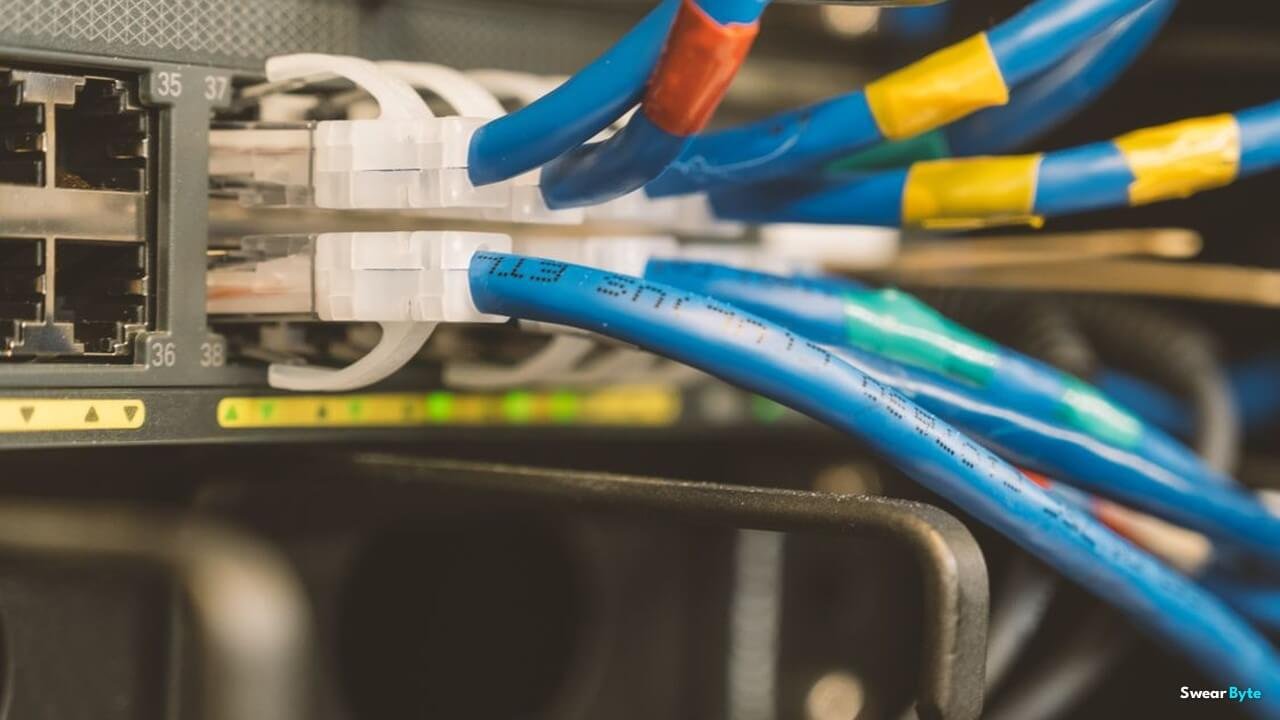
A wired Ethernet connection beats WiFi for anything where speed and stability matter. No interference, no signal loss through walls, and no congestion. Just a direct line to the router.
Consider wiring up your desktop computer, game console, smart TV, or work computer. You will get faster speeds, lower latency for gaming and calls, and a connection that does not drop.
You do not need to wire everything. Keep phones and tablets on WiFi, and give the cable to the devices where a stable connection actually matters.
What If Your Internet Is Still Slow?
If you followed all ten steps and things are still slow, it is time to find out if the problem is inside your home or with your provider.
Test with Ethernet if the wired speed is also much lower than what you pay for. The issue is probably your modem cables or the provider’s line. Check your cables for damage. Make sure everything is plugged in properly, and check if your router is very old or getting too hot.
If the wired speed is good but WiFi is slow, the problem is your wireless setup. You may need to place your router in a better spot, use a WiFi extender, or, for areas with no signal or in a big home, get a mesh WiFi system.
When you talk to your provider, have your facts ready: your plan speed, your actual wired download and upload speeds when the problem happens, and what you already did; it makes the call much shorter
How to Make Your Internet Faster on a Phone
First, figure out whether your phone is slow on WiFi or on data. They are different problems.
On WiFi: move closer to the router. Turn off WiFi. Turn it back on. Restart your phone. Try forgetting the network. Connecting again. If other devices are fast but your phone is slow, the problem is in the phone or its WiFi settings.
On data: check your signal strength. Turn off background app refresh and auto downloads. Close apps that are streaming in the background. If data is always slow in one location, that is a coverage issue. No phone setting will fix it.
When Should You Upgrade Your Internet Plan?
Not every slow internet connection requires an upgrade. A faster plan makes sense when your whole family often pushes the current plan to its maximum. Signs include when several people are streaming at the same time, when there are constant large downloads, when there are frequent big uploads, or when many people are online all day long.
Check your connection first. Spending money on speed that you do not need is just wasting money. Upgrade when your real needs are greater than what your plan offers.
Mistakes to Avoid When Fixing Slow Internet
Change one thing at a time. If you change DNS, change the WiFi channel, and move the router at once, you will never know which change helped.
Also skip “internet booster” apps. Most of them do not make anything faster. They only add software to your system, and some are barely better than ads.
Frequently Asked Questions
Can I make my internet faster without upgrading my plan?
Yes. Putting the router in a spot, limiting the number of devices using the internet at the same time, using an Ethernet cable for tasks that need more speed, stopping downloads that happen in the background, and reducing things that mess up the WiFi signal can all make the internet feel much faster without paying extra.
Why is my internet slow even though my speed test looks fine?
A speed test checks the connection at one moment. Slow internet can happen because the WiFi signal is weak in the room where the device is, the DNS is taking too long to respond, the browser is too full of tabs, the delay is high, or the website is just slow on its own.
Will restarting my router make my internet faster?
Restarting the router can fix problems and bring back speed that was lost over time.. It does not make the speed from the internet provider any faster, for good.
Is 5 GHz WiFi faster than 2.4 GHz?
Yes, 5 GHz WiFi is faster when you are close to the router and has interference from other devices. 2.4 GHz WiFi travels farther and passes through walls more easily. Use 5 GHz if you are near the router and 2.4 GHz if you are away.
Will changing DNS make my internet faster?
Changing DNS might help websites load a little faster because it can improve how your computer finds the address. It does not increase your real internet speed. Things like downloads and streaming will stay the same.
Why is WiFi slower than Ethernet?
WiFi has to deal with distance, walls, interference, and shared airspace. Ethernet is a wired connection so it avoids all of that and stays fast and stable.
How can I make my internet faster for gaming?
Use an Ethernet cable if you can. Keep devices from downloading or streaming while you play. For gaming, low latency and a stable connection matter more than raw download speed.
Why is my WiFi suddenly slow when it was fine before?
A sudden slowdown can happen because of a background download. It can also happen because a new device is on the network. Sometimes a neighbor’s new router causes interference. Also, your router might need a restart. Check for background activity first. Then restart your equipment.
Do I need to buy a router?
Only if the router is the problem. If the wired speed is fine but the WiFi is slow everywhere, and the router is years old, an upgrade can help. Test first. A new router will not fix a provider line.
Conclusion
Learning how to make internet faster is about finding the real cause. Do not jump straight to an expensive plan. Start with a speed test, restart your equipment, fix your router placement, cut down background usage, and compare WiFi with Ethernet.
In homes, the problem is the WiFi setup, not the plan. Fix one thing at a time; test after each change and skip the booster apps. If your wired speed is still below what you pay for after all this, that is when you call your provider with your test results in hand.
Related Articles
– How to Speed Up Windows 11: 10 Easy Fixes
– How to Start Freelancing With No Experience: 10 Practical Ways
– How to Find Freelance Clients: 9 Proven Ways for Beginners (2026)