Introduction
Windows 11 machines can be slow in the long run, and that makes normal activities very annoying for users. Slowing down applications, slow booting, and difficulty in multitasking are common issues that I have experienced myself. Learning how to speed up Windows 11 will solve such problems in order to make your computer faster.
As soon as my laptop began lagging, I tried to apply different methods to test Windows settings rather than downloading complex third-party software. While I was trying out various methods, I could see that turning off unnecessary applications at startup made my boot process much easier and my laptop work faster.
In this post, I would like to introduce 10 different ways to make Windows 11 faster through its built-in settings. I will provide a detailed explanation of each method to allow even beginners to do this without downloading any extra software.
You can also explore useful AI tools for daily life to improve productivity and make everyday tasks easier.
Windows 11 Slow After Update? Try These Fixes
There are too many startup apps that consume a lot of resources. Low storage space can cause Windows to run slowly. Apps that are not fully closed can slow down your computer by running in background processes. Another problem is outdated Windows or software because malware and other kinds of viruses can cause the use of the system’s resources, which will slow down the computer. In older computers, slow Windows 11 can be caused by a lack of memory or overheating.
1. Disable Unnecessary Startup Apps
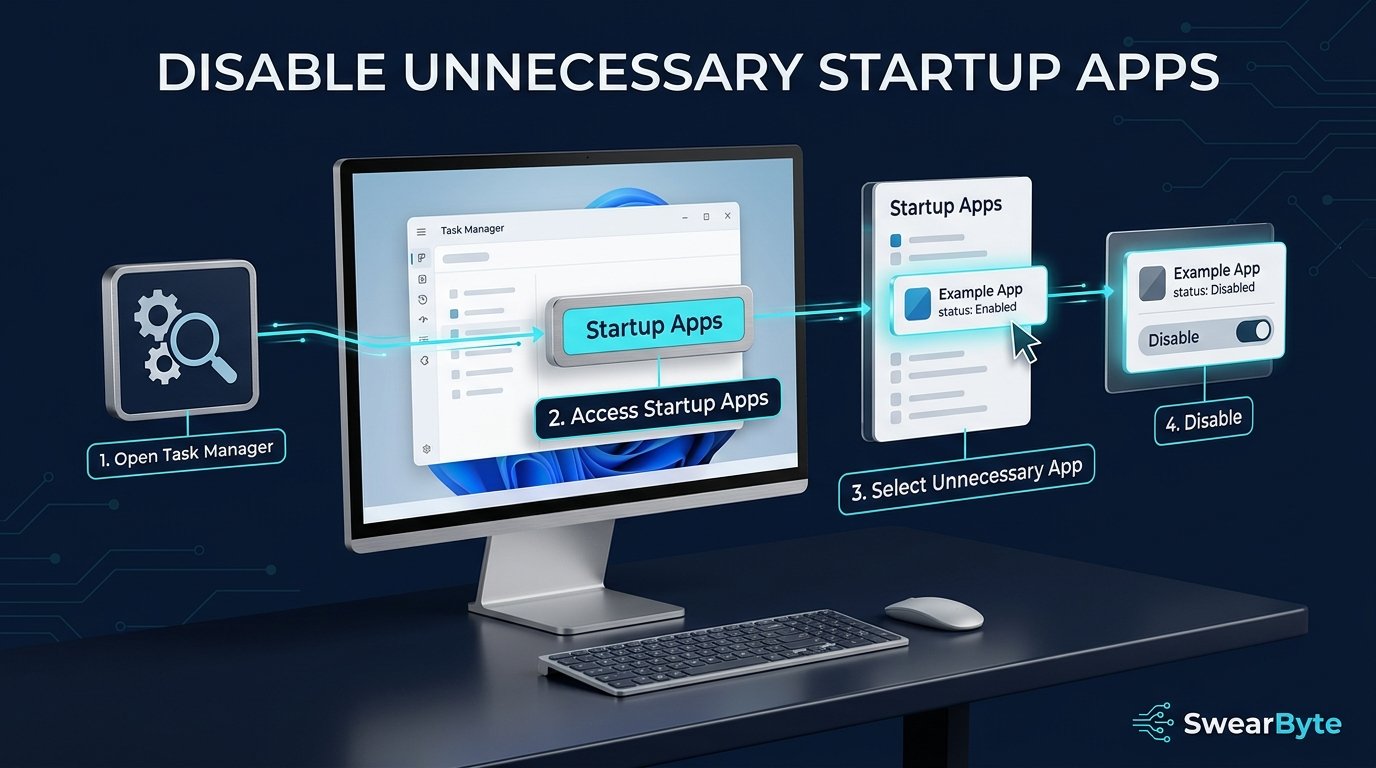
Start-up apps are those applications that will run automatically when you start your computer. Many start-up applications might slow down your computer’s start-up time and make use of system resources. Disabling such start-up applications will improve Windows 11 performance.
Follow These Steps:
- Press Ctrl + Shift + Esc to open Task Manager.
- Click on Startup apps from the left-hand menu.
- Look through the list and find apps you don’t need to start automatically.
- Select the unnecessary app.
- Click Disable.
- Repeat the process for every other unnecessary startup app.
- Restart your PC and check whether the startup time has improved.
Tip: Do not disable any application that you don’t know what it does, because some applications and services can be useful for your system operation.
2. Uninstall Apps You Don’t Use
Unused applications can use up storage capacity and might even have some background processes consuming your computer’s system resources. Uninstalling those apps you no longer require can be another easy method to improve system performance.
Follow these Steps:
- Open Settings by pressing Windows + I.
- Click Apps from the left-hand menu.
- Select Installed apps.
- Find the app or program you no longer use.
- Click the three dots next to the app.
- Select Uninstall and follow the instructions.
- Restart your PC if required.
If you’re not sure how to improve Windows 11 performance, then uninstalling some of the software that you don’t need is a way to go about it.
3. Free Up Storage Space
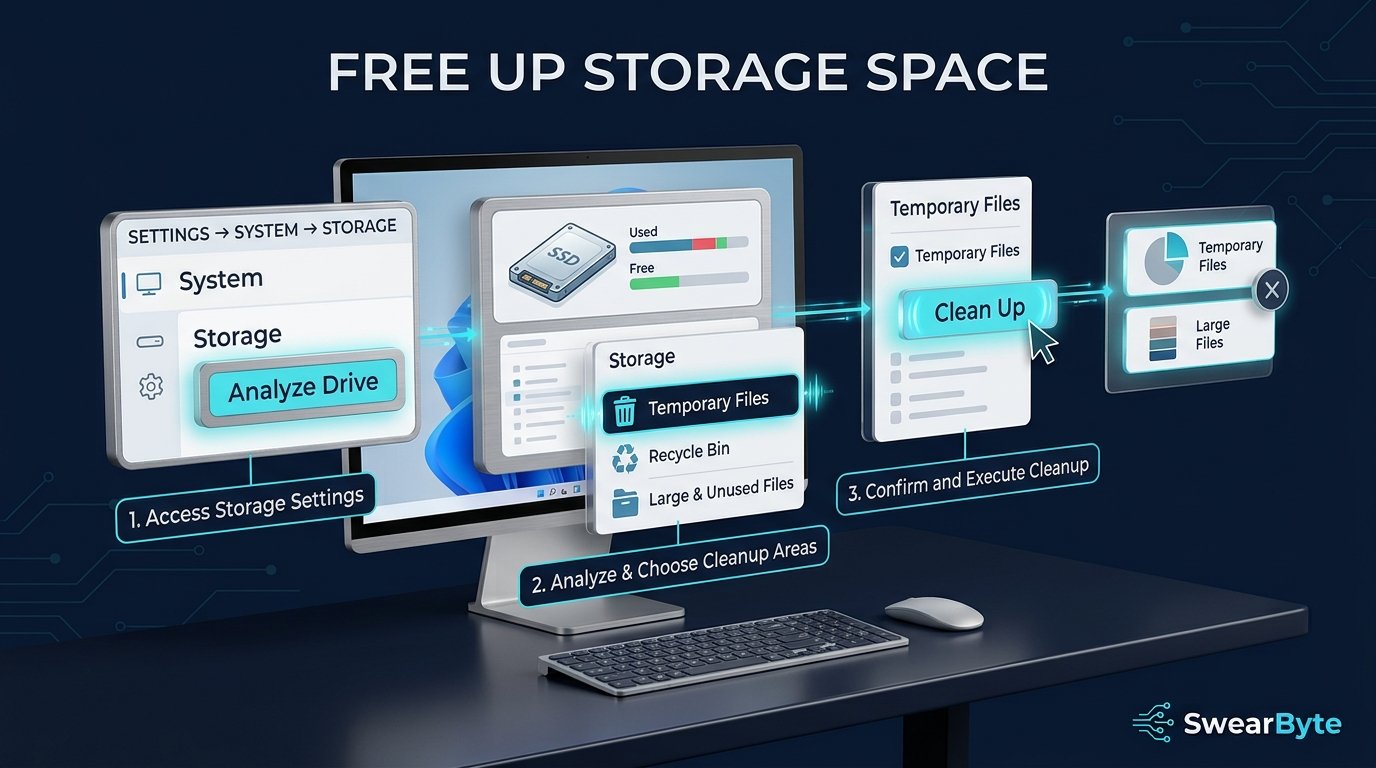
Very little free storage capacity can have an impact on the functioning of your computer. Windows requires sufficient free space to handle temporary files. By getting rid of unnecessary files, you can improve your PC’s performance.
Follow These Steps:
- Open Settings by pressing Windows + I.
- Click System from the left-hand menu.
- Select Storage.
- Check which files and apps are taking up the most space.
- Open Temporary files and select the files you want to remove.
- Click Remove files to free up storage space.
- You can also uninstall large apps or move personal files to another drive if needed.
Having some amount of free space on your Windows 11 computer can improve performance.
4. Delete Temporary Files
Windows and the applications installed on the computer generate temporary files during various operations. Temporary files build up in large numbers over time and occupy unnecessary disk space. Deleting these files is a straightforward way of improving system performance.
Follow These Steps:
- Press Windows + I to open Settings.
- Go to System → Storage.
- Click Temporary files.
- Wait for Windows to calculate the files that can be removed.
- Select the temporary files you want to delete.
- Click Remove files.
Different classifications of temporary files can be shown by Windows, based on your computer configuration. Examine the list carefully before performing any deletions, particularly in the case of Downloads.
If you are searching everywhere to improve Windows 11 performance, then one simple maintenance process can clean out unnecessary temporary files. You don’t need any third-party tools to do so.
5. Keep Windows 11 Updated
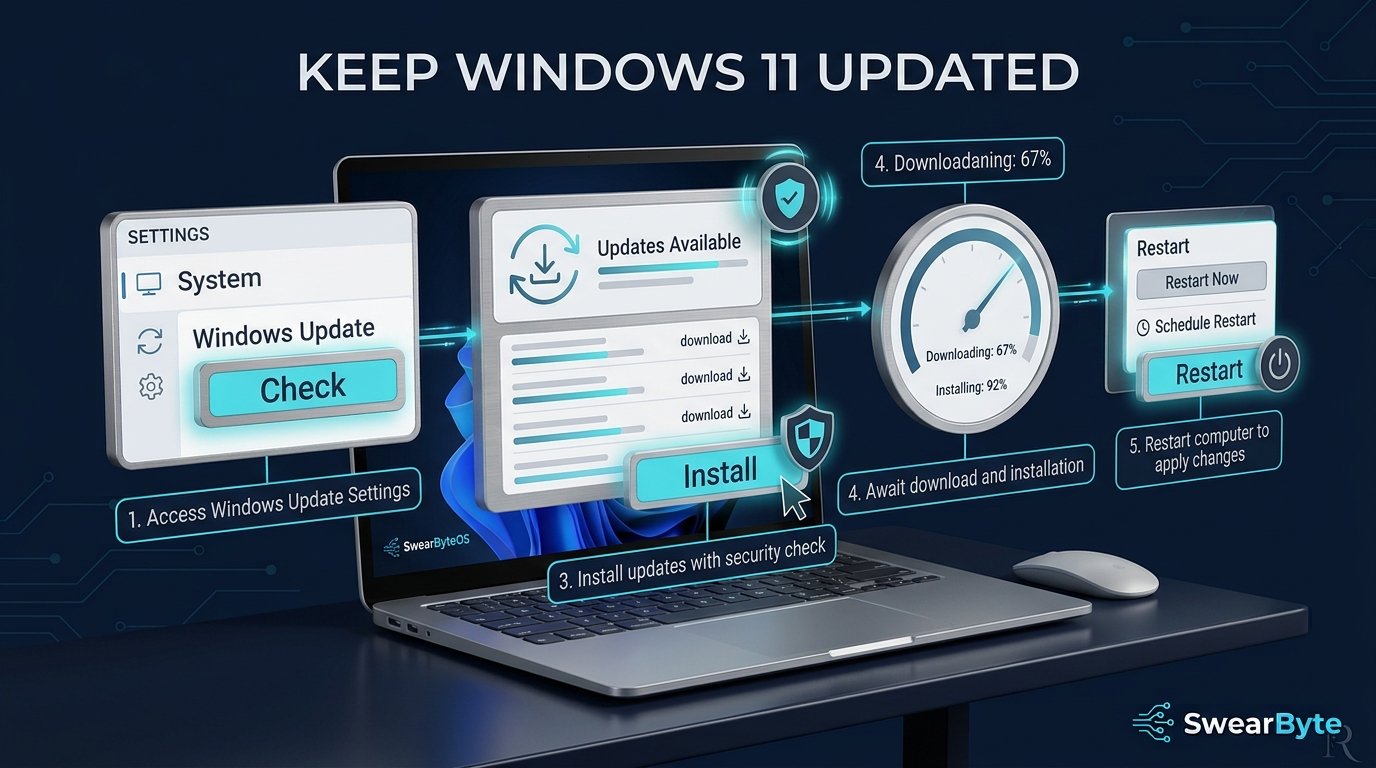
Updating Windows 11 is likely to boost the overall performance of your system by improving its stability and security. Updates from Microsoft will correct any bugs in the operating system and improve its performance. If you’re learning speed up Windows 11, updating is one of the simple things to do.
How To Check For Updates:
- Press Windows + I to open Settings.
- Click Windows Update from the left menu.
- Click Check for updates.
- If updates are available, allow Windows to download and install them.
- Restart your PC if Windows asks you to do so.
System updates can also protect you from software issues that could slow down Windows 11. In order to maintain good system performance, you should keep your system up to date.
Updates for increased security and functionality are frequently issued by Microsoft. More information regarding Windows updates is available on the Microsoft support website.
6. Reduce Unnecessary Background Activity
Some applications and programs run in the background regardless of being inactive. Such programs use the CPU and RAM and thus have an impact on your computer’s performance. When learning to improve Windows 11 performance, checking background activity can help you identify which apps are using too many resources.
Follow These Steps:
- Press Ctrl + Shift + Esc to open Task Manager.
- Stay on the Processes tab.
- Check the CPU, memory, and disk columns.
- Look for apps that are using a high amount of system resources.
- If you recognize an app you don’t need, select it and click End task.
- Avoid ending Windows system processes if you are not sure what they do.
If you are trying to find out improve Windows 11 performance without installing any extra apps, then Task Manager can be useful because it is a built-in function that can show you which apps are affecting Windows performance. Determining which applications consume high CPU or RAM resources can help identify resource-heavy apps without extra software.
7. Adjust Windows Visual Effects
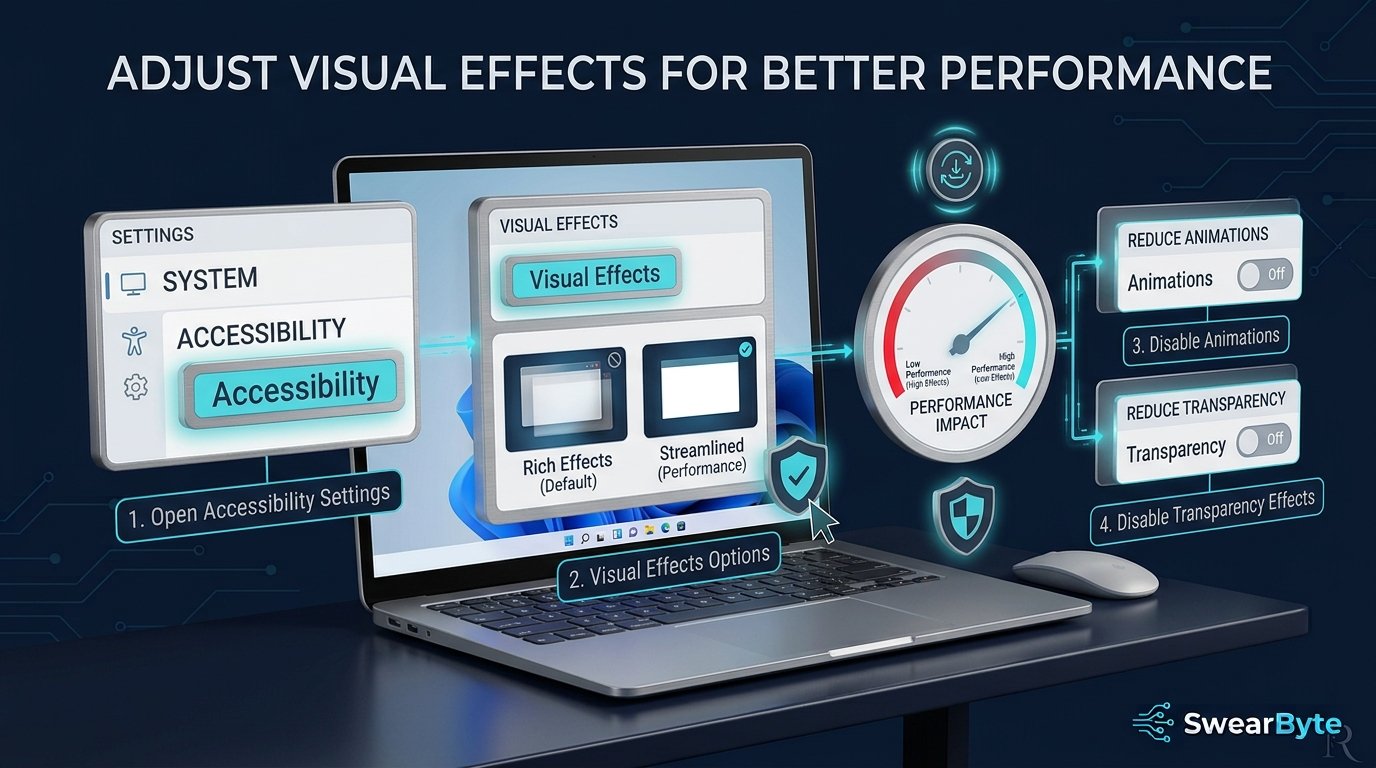
Windows 11 includes animation, transparency, and other visual effects, which make its interface look smooth and refined. However, such effects may consume system resources, especially on outdated computers. If you’re seeking tips on improving Windows 11 performance, it is worth considering disabling unneeded visual effects.
Follow These Steps:
- Press Windows + I to open Settings.
- Go to Accessibility → Visual effects.
- Turn off animation effects.
- Turn off transparency effects.
- Use your PC for a while and check whether its performance improves.
You do not necessarily have to turn off all the effects. Animations and transparency will be your priority, particularly if you have an outdated computer. This should help improve performance without losing its essential elements.
8. Scan Your PC for Malware
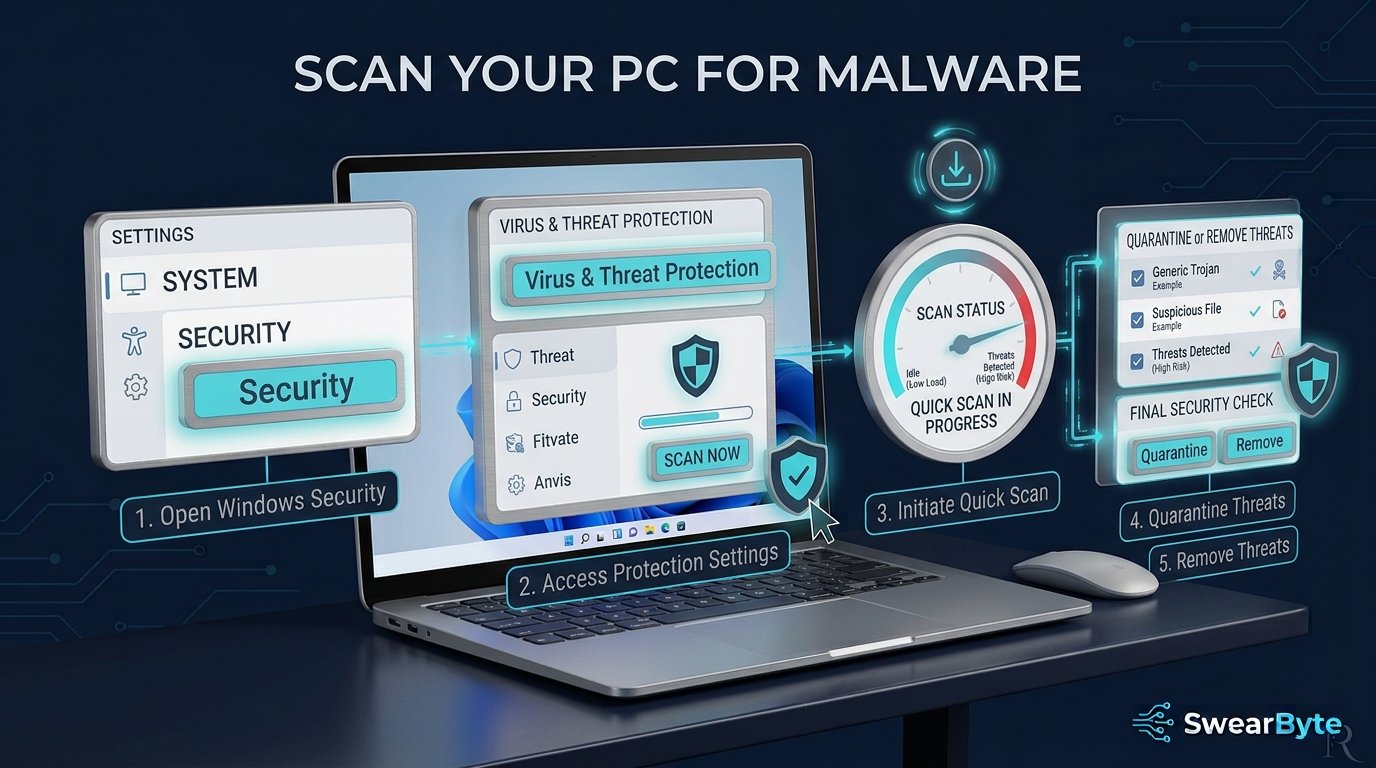
Malware is capable of running silently in the background and using your computer’s CPU, RAM, and other system resources. It might slow down your computer and negatively impact the performance of Windows 11. If you are trying to learn to improve Windows 11 performance, don’t forget to check your PC for any malware. This is an important step because malware can affect your PC’s performance.
Follow These Steps:
- Open the Start menu and search for Windows Security.
- Open Windows Security and click Virus & Threat Protection.
- Under Current threats, click Quick scan.
- Wait for Windows Security to complete the scan.
- If a threat is detected, follow the recommended actions to remove or quarantine it.
You can always perform a more comprehensive scan by clicking on Scan options and selecting Full scan. Although it may take more time, it will thoroughly inspect more files and applications.
Malware scanning will help keep your PC safe and protect it against any unnecessary programs that can slow down its performance. In the process of improving your PC’s performance, you should ensure that it’s not malware slowing down your computer.
9. Optimize Power Settings
Windows provides several power modes, which dictate the way in which your PC will handle the performance-energy ratio. Power-saving mode for laptops can restrict your PC’s performance to save battery. If your PC is operating slowly, modifying the power mode can enhance the performance of your PC.
Follow These Steps:
- Press Windows + I to open Settings.
- Go to System → Power & battery.
- Find the Power mode option.
- Select Best performance when your PC is connected to a power source.
- On a laptop, switch back to a more balanced mode when you want to save battery.
However, the Best Performance mode uses more power and might drain your laptop’s battery faster. It is advised that for day-to-day activities, you pick the mode that offers a good compromise between performance and battery.
10. Restart Your PC Regularly
Restarting your computer might appear to be a straightforward step, but it could help remove some temporary processes and clear resources from your computer’s system. In cases where your computer has been operating for a very long time, these background processes may impact its efficiency. This could be an easy approach to improve PC performance.
When should you restart your PC?
- Restart your PC if it starts feeling slow or unresponsive.
- Restart after installing important Windows updates.
- Restart after installing or uninstalling major software.
- If you keep your PC running for several days, consider restarting it occasionally.
Though a restart is not always a permanent solution for performance issues, it can help fix any temporary slowdowns due to the processes that are currently active on your computer and resource use. A simple restart is among the easiest solutions to try.
What If Your PC Is Still Slow?
Follow These Steps If Your PC Is Still Slow:
- Check how much RAM your PC has
- HDD hai ya SSD—SSD generally faster hoti hai
- Check whether your PC is overheating
- Very old CPU/hardware performance limit kar sakta hai
- Check Task Manager for consistently high CPU/RAM/Disk usage
- If hardware is too old, RAM upgrade or SSD upgrade consider karo
Frequently Asked Questions
How can I improve Windows 11 performance?
Ans. You can improve performance by stopping unnecessary applications from launching at startup, uninstalling unneeded software, creating more space, getting rid of temporary files, and making sure Windows is up to date. There are other tweaks you can apply as well.
Why is my Windows 11 PC so slow?
Ans. The reason a computer running on Windows 11 might be slow is that there are too many applications running at start-up, little available storage space, background processes that should not run, old software, malware, or lack of sufficient hardware resources.
Does disabling startup apps improve performance?
Ans. Yes, preventing unnecessary applications from running at startup will make your PC boot faster and will decrease the number of programs consuming system resources. However, you should disable only those applications that you do not want to open automatically.
Does an SSD improve performance?
Ans. Indeed, it is possible to see changes after switching from an HDD to an SSD on a PC. The computer can become more responsive, with shorter startup times and quicker app launches.
How much RAM does Windows 11 need?
Ans. The minimum amount of RAM that Windows 11 needs is 4 GB, although the more RAM you have, the better your multitasking and application experience will be. A comfortable amount of RAM is 8 GB for normal usage and 16 GB for heavy-duty work.
Conclusion
Through practical tests, I realized that you do not need expensive updates and additional software to understand how to speed up Windows 11. Some easy steps, like disabling unnecessary startup applications, uninstalling old programs, organizing storage space, clearing temporary files, and performing an update, can make your computer faster.
I would also suggest reducing background activities on the computer, changing some visual settings, detecting any malware, tuning the power options, and rebooting the computer. However, in case your Windows 11 computer remains slow even with these measures, the cause may be low RAM, HDD problems, overheating, or obsolete equipment.
It would be useful to implement all of these steps one at a time and see how your computer works. This method helped me discover what actions had the most effect during my testing process.
Which of these tips had a positive effect on your computer? Let us know in the comments section below!



One Comment on “How to Speed Up Windows 11: 10 Easy Fixes”